
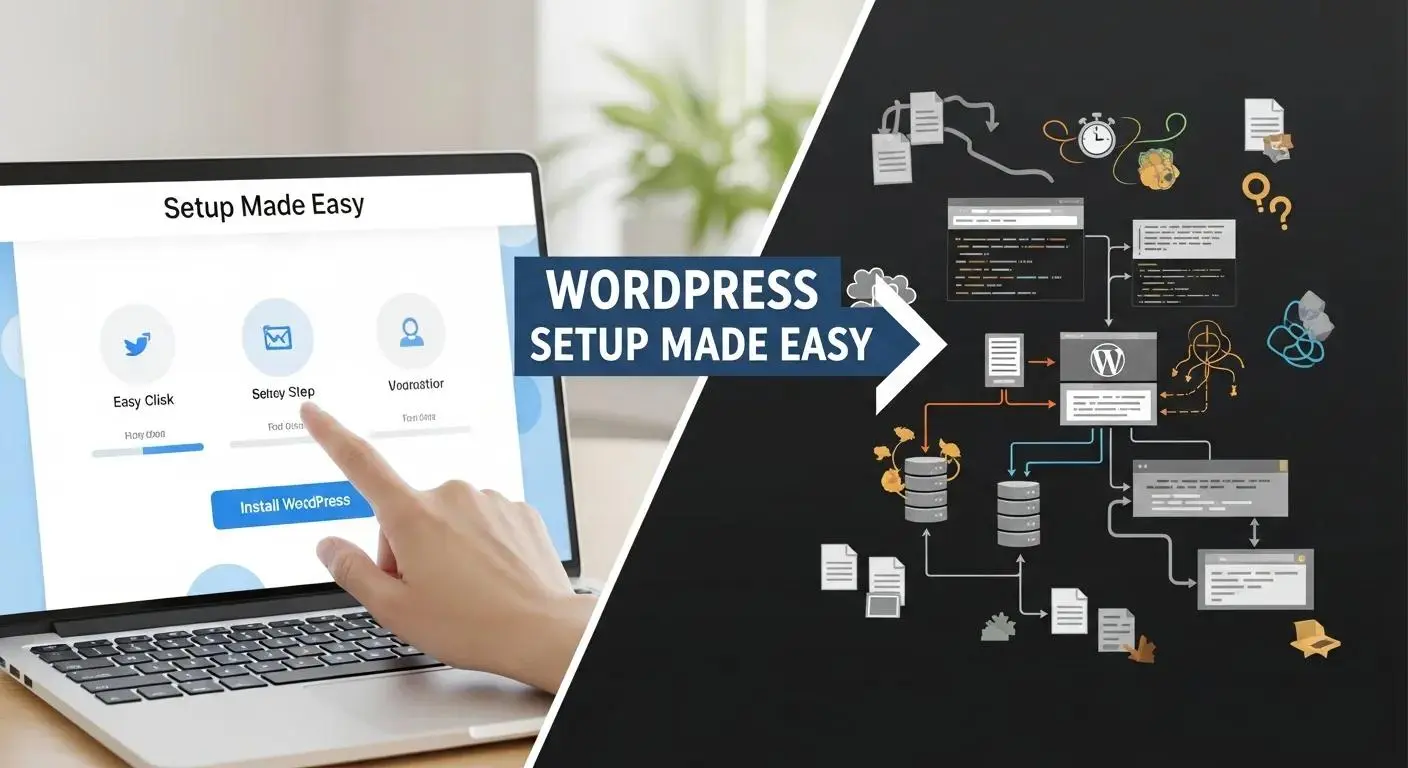
Getting started with WordPress may feel overwhelming at first, but with clear steps it’s entirely doable — and rewarding. This guide walks you through everything you need to launch a WordPress site, from picking a domain and hosting to installing WordPress, customizing your design, creating content, and keeping your site secure and fast. WordPress runs over 43% of the web, and this walkthrough gives you the practical steps to join that community with confidence.
If you’re new to site building, simple setup guides like this one can remove the guesswork and help you start faster.
WordPress Setup Guide for Beginners
A concise, beginner-focused resource explaining why the author wrote the guide and the mission to help newcomers quickly set up a self-hosted WordPress blog — WordPress For Beginners: How To Set Up A Self-Hosted Blog In 30 Minutes (2018).
What You Need to Start a WordPress Website: Essential Requirements
Before you start, it helps to know the basics: pick a domain name, choose a hosting provider, and be ready to manage a few simple technical tasks. With those in place, you’ll be able to install WordPress and start publishing.
How to Choose the Right Domain Name and Register It
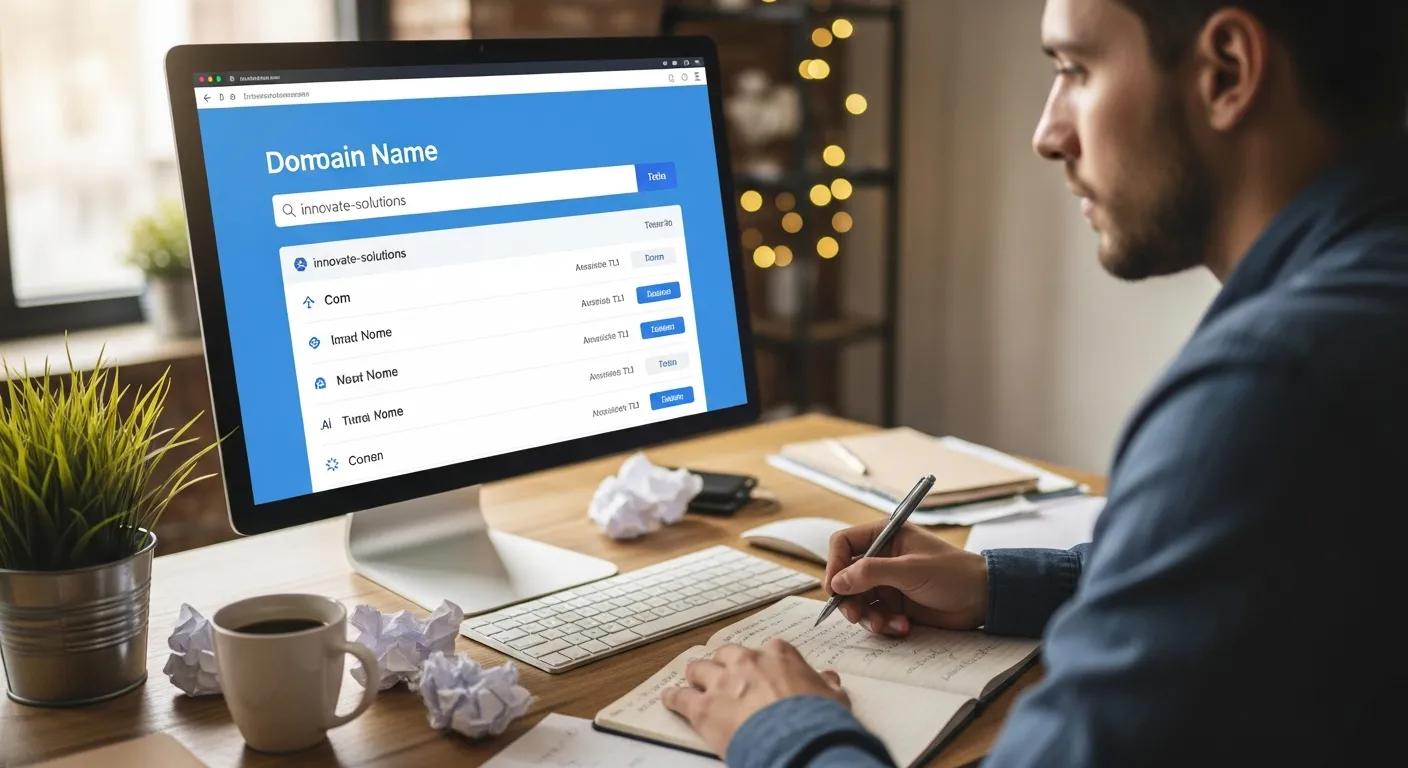
Your domain is how people find and remember your site, so choose one that’s clear, relevant, and easy to type.
Tips for selecting and registering a domain name:
- Keep it short and simple: Pick a concise name that reflects your site or brand.
- Include useful keywords: If appropriate, add a keyword that describes your site to improve clarity and search visibility.
- Avoid numbers and hyphens: They can make the address harder to remember and type.
After you decide, register the domain through a registrar and consider buying close variations to protect your brand.
Why Beginner-Friendly WordPress Hosting Matters
Your hosting choice affects speed, uptime, and security. Beginner-friendly WordPress hosts simplify technical tasks so you can focus on content and growth.
Look for these hosting benefits:
- Managed WordPress hosting: The host handles updates, backups, and server tuning so you don’t have to.
- Performance optimization: Hosts using LiteSpeed or other optimizations deliver faster page loads.
- 24/7 customer support: Reliable help is essential when you run into issues or have questions.
Hostingial provides affordable, beginner-focused WordPress plans designed for individuals and small businesses who want a smooth setup experience.
How to Install WordPress Easily: Two Simple Methods
Installing WordPress is straightforward. You can use a one-click installer for the fastest setup, or follow a manual install if you prefer more control.
How to Use One-Click WordPress Installation via cPanel on Hostingial
One-click installation gets your site live in minutes. Many hosts, including Hostingial, include this in cPanel. Steps:
- Log into cPanel: Open your hosting account dashboard and go to cPanel.
- Open the WordPress installer: Find “Softaculous Apps Installer” or a similar WordPress installer.
- Follow the prompts: Select WordPress, enter basic site details, and run the installer.
With this method your WordPress site should be ready within minutes.
When and How to Perform Manual WordPress Installation
Manual installation is useful if you want custom control over files or setup. It requires a few more steps but is still straightforward:
- Download WordPress: Get the latest package from wordpress.org.
- Upload files to your server: Use an FTP client to upload the WordPress files to your hosting account.
- Create a database: In cPanel, create a MySQL database and a database user, then assign the user to the database.
- Configure wp-config.php: Rename wp-config-sample.php to wp-config.php and enter your database details.
- Run the installer: Visit your domain and finish the setup through the on-screen prompts.
Manual setup gives you more control but needs a bit more technical comfort.
How to Navigate the WordPress Dashboard: A Beginner’s Tutorial
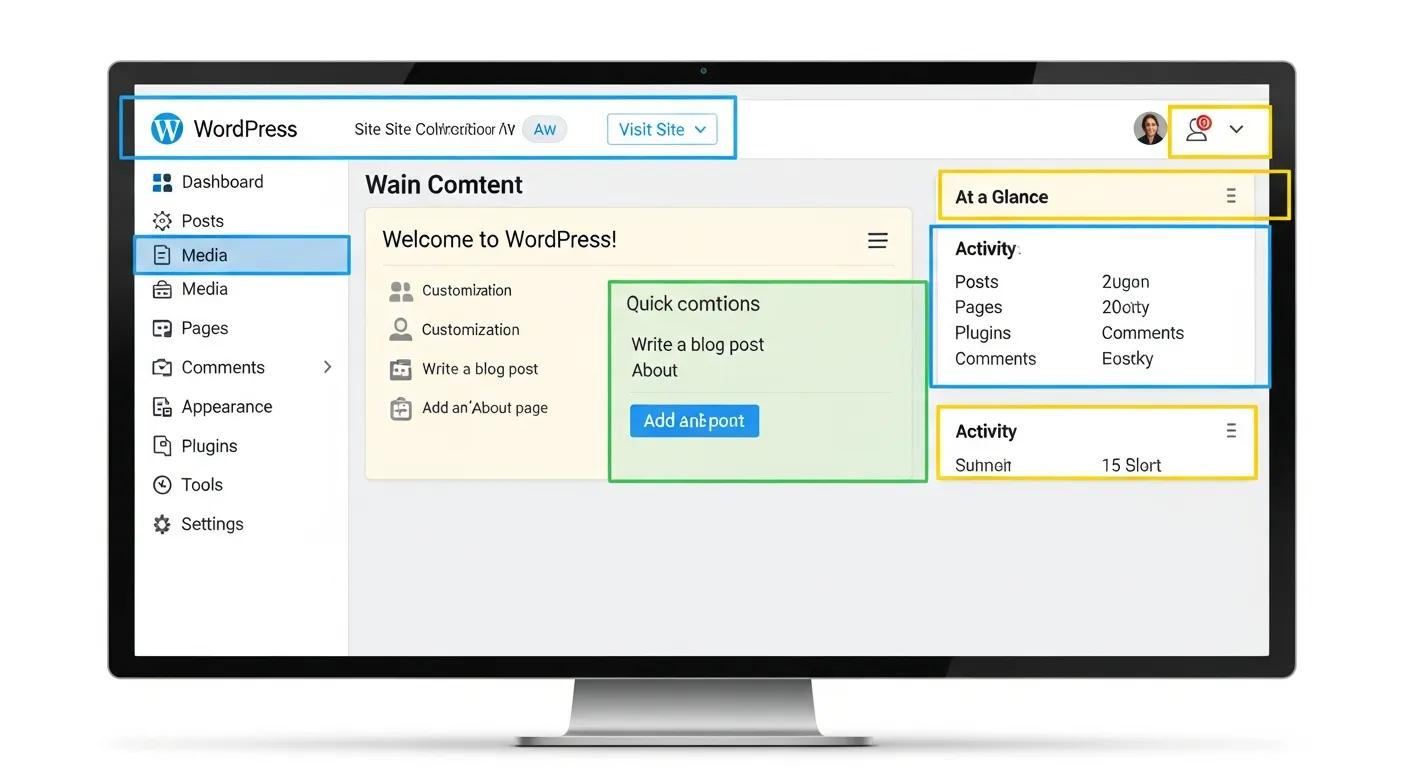
After installation, the dashboard is where you manage content, appearance, plugins, and settings. Spend a little time exploring — it’s the control center for your site.
Designing effective training for these skills is often studied in instructional design, which identifies learning gaps and structures practice to help beginners gain real competency.
Instructional Design for WordPress Website Building Skills
This study used the ADDIE instructional design model to identify and close performance gaps in website-building skills for communication design undergraduates. The research aimed to develop a blended learning plan and short workshop training so students could build portfolio sites with WordPress (W. Yuangngoen, 2019).
Key Dashboard Sections Every Beginner Should Know
The dashboard includes a few main areas you’ll use every day:
- Posts: Create and manage blog posts and updates.
- Pages: Add static pages like “About” and “Contact.”
- Media: Upload and organize images, videos, and other files.
- Appearance: Choose and customize themes, menus, and widgets.
- Plugins: Add features and extend site functionality.
How to Manage Basic Settings: Site Title, Tagline, and Permalinks
Set a clear site identity and friendly URLs:
- Site title and tagline: Go to Settings > General to set your site’s title and short tagline — these show in search results and browser tabs.
- Permalinks: In Settings > Permalinks choose an SEO-friendly structure like “Post name.”
These simple settings help visitors and search engines understand your site.
How to Customize Your WordPress Site: Themes and Plugins
Customization makes your site look and behave the way you want. Choose a theme for layout and style, then add plugins for extra features.
How to Select and Install Free and Beginner-Friendly WordPress Themes
Choosing the right theme affects usability and look. Follow these steps:
- Browse the theme repository: Search WordPress.org for responsive, well-rated themes.
- Preview themes: Use the preview tool to see your content in the theme before installing.
- Install and activate: Click “Install” and then “Activate” to apply the theme to your site.
A thoughtfully chosen theme improves both appearance and usability.
Essential Plugins Beginners Should Install for SEO, Security, and Performance
Plugins add key functionality. For most beginners, these are a great starting point:
- Yoast SEO: Guides you to optimize content for search engines.
- Wordfence Security: Adds malware scanning and firewall protection.
- LiteSpeed Cache: Speeds up pages with server-side caching (especially on LiteSpeed hosts).
These plugins help with visibility, protection, and faster page loads.
How to Create and Manage Content in WordPress: Posts, Pages, and Media
Publishing content is the core of your site. Learn how to create posts, build pages, and manage media files to present your message clearly.
How to Create Your First WordPress Post and Page, Step by Step
Publishing your first piece is simple:
- Go to Posts or Pages: Click “Add New” in the dashboard under Posts or Pages.
- Add a title and content: Use the block editor to add text, images, and other media blocks.
- Publish: When you’re ready, click “Publish” to make the content live.
That’s all it takes to share your first post or page.
How to Add Images and Organize Content Using Categories and Tags
Images and clear organization make your content easier to scan and navigate: managed wordpress hosting
- Add images: Use the “Add Media” button within the editor to upload or insert images.
- Use categories and tags: Assign categories and tags to help visitors find related posts and improve site structure.
Good organization helps both users and search engines.
How to Launch and Maintain Your WordPress Site: SEO, Security, and Performance
Launching is the start — ongoing maintenance keeps your site healthy and discoverable.
Pre-Launch Checklist for WordPress Beginners
Before you go live, double-check these items:
- Check for broken links: Verify all links work and direct users correctly.
- Optimize for SEO: Use an SEO plugin to add meta titles, descriptions, and basic keyword checks.
- Test responsiveness: Make sure your site looks and works on phones and tablets.
Running through this checklist reduces post-launch surprises.
How to Optimize WordPress Speed Using LiteSpeed Cache and Basic SEO Settings
Speed and basic SEO are critical for user experience and rankings. Try these steps:
- Install LiteSpeed Cache: Enable caching to reduce page load times.
- Optimize images: Compress images before uploading or use an optimization plugin.
- Limit plugins: Deactivate and remove unused plugins to reduce overhead.
These optimizations help pages load faster and keep visitors engaged.
Different themes and plugins can change how easy it is to build and manage your site. Below is a quick comparison of popular beginner-friendly options.
| Theme/Plugin | Type | Key Features |
|---|---|---|
| Astra | Theme | Lightweight, customizable, SEO-friendly |
| Elementor | Plugin | Drag-and-drop page builder, responsive design |
| Rank Math | Plugin | Advanced SEO features, user-friendly interface |
Frequently Asked Questions
What are the best practices for choosing a WordPress theme?
Pick a responsive, fast theme that is regularly updated and has good reviews. Check compatibility with major plugins you plan to use, preview the theme with your content, and review the developer’s support options before committing.
How can I improve my WordPress site‘s SEO?
Start with an SEO plugin like Yoast or Rank Math to guide on-page optimizations. Do keyword research, ensure pages load quickly and are mobile-friendly, and publish helpful, well-structured content regularly.
What security measures should I take for my WordPress site?
Use strong passwords and enable two-factor authentication for admin accounts. Install a security plugin (Wordfence or Sucuri), keep WordPress, themes, and plugins updated, enable SSL, and maintain regular backups.
How often should I update my WordPress site?
Check for updates to WordPress core, themes, and plugins at least once a week. Also review content periodically for accuracy and relevance, and address any security or performance issues promptly.
What are the benefits of using plugins in WordPress?
Plugins add features without coding — SEO tools, security, caching, e-commerce, and more. Choose reputable plugins, keep their number reasonable, and only install what you actually need to avoid slowing the site.
How can I back up my WordPress site effectively?
Use backup plugins like UpdraftPlus or BackupBuddy to schedule automated backups to cloud storage (Google Drive, Dropbox). Alternatively, export your database via phpMyAdmin and download files via FTP. Always keep multiple, tested backups.
Conclusion
Building a WordPress site is a practical skill you can pick up quickly. Follow this guide to choose the right domain and host, install WordPress, customize your design, and publish content. With regular maintenance and basic optimizations, your site will stay secure and perform well. Start today — a polished, useful website is closer than you think.