
WordPress Installation Guide- WordPress setup doesn’t have to be complicated. Follow this concise, step‑by‑step guide and you’ll have a working site in minutes. We’ll walk you through everything—from picking the right Hostingial plan to troubleshooting common hiccups—so you can launch confidently and keep your site running smoothly.
WordPress Installation Guide
Why pick Hostingial for fast, reliable WordPress installs?
Choosing the right host matters. Hostingial combines performance-tuned infrastructure with hands-on support, so your WordPress site boots quickly and stays stable from day one.
What makes Hostingial’s WordPress hosting fast and easy to set up?
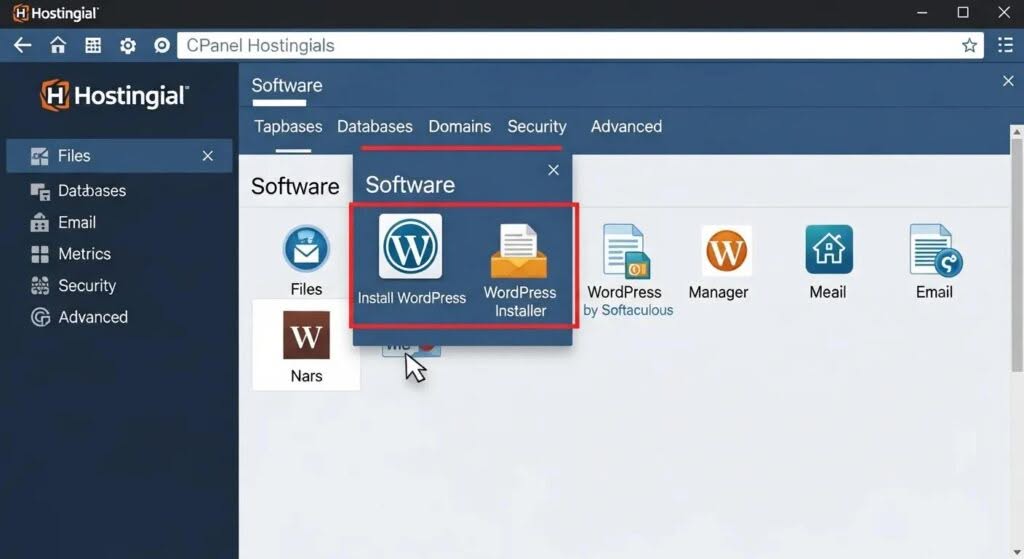
We design our WordPress plans for real people — clean interfaces, sensible defaults and one-click installers. With optimized server settings and Softaculous one-click installation, you can skip manual steps and get straight to building.
How do LiteSpeed servers and LSCache boost WordPress performance?
Hostingial runs on LiteSpeed servers tuned for WordPress. Paired with LSCache, your pages deliver faster and handle traffic spikes better. The result: smoother browsing for visitors and fewer performance headaches for you.
WordPress Optimization for High Hosting Speeds
LiteSpeed Web Server and SSD Cloudflare, resulting in very high hosting speeds with uptime reaching 99.9%. In terms of WordPress optimization actions affect the performance of the website.
WordPress Complete, 2017
What do you need before installing WordPress?
A little preparation makes the install seamless. Before you begin, confirm your domain, hosting plan and database details are ready so the process goes without surprises.
How to prepare your domain and Hostingial account
Start by registering or pointing your domain and signing into your Hostingial dashboard. Pick a plan that fits your traffic and feature needs—shared plans work for most sites, while advanced projects may require more resources.
How to create and configure a MySQL database
WordPress stores content in a MySQL database. In cPanel, open MySQL Databases to create a new database and user, then assign the right permissions. Note the database name, username and password—you’ll need them during installation.
One-click WordPress installation with Hostingial cPanel and Softaculous
Prefer the fastest route? Use our one-click installer. It guides you through the essentials and completes the setup automatically.
Step-by-step: one-click WordPress install
Log into your Hostingial cPanel and open the Softaculous Apps Installer. Choose WordPress, enter basic details like your domain and site title, set your admin credentials, then click Install. In minutes your site will be live and ready for customization.
One-Click WordPress Installation for Quick Setup
Moreover, some web hosts provide a one-click or easy-to-use installer, which lets you skip the manual installation process and get your WordPress site up and running in minutes.
WordPress Complete, 2017
How to access and use the WordPress dashboard after install
Visit yourdomain.com/wp-admin and log in with the credentials you set. The dashboard is where you add pages, install themes and plugins, and tweak settings—spend a few minutes exploring and you’ll feel at home quickly.
Manual WordPress install on Hostingial — a hands-on guide
If you want full control, manual installation is straightforward when you follow the right steps.
Download WordPress and upload files via FTP
Download the latest WordPress package from wordpress.org, then use an FTP client (like FileZilla) to upload the files to your Hostingial account—usually into public_html for your primary domain.
Configure wp-config.php and run the installer
Rename wp-config-sample.php to wp-config.php and add your database name, user and password. After saving, visit your domain in a browser and follow the on-screen installer to finish setup.
Essential post-install steps to secure and optimize your site
After installation, take a few quick actions to lock down and speed up your site: basic settings, SSL, security plugins and caching all make a big difference.
Configure basic settings and permalinks
In Settings > General, set your site title, tagline and timezone. Then go to Settings > Permalinks and choose the Post name option for cleaner URLs and better SEO.
Secure your site with SSL and plugins on Hostingial
Enable SSL (we support Let’s Encrypt) to protect visitors. Add a trusted security plugin and keep WordPress core, themes and plugins updated. Regular backups are essential—set them up right away.
Troubleshooting common WordPress install issues on Hostingial
Even with a smooth process, issues can happen. These quick checks solve most installation problems.
Fix database connection and directory errors
If you see a database connection error, confirm the database name, username and password in wp-config.php. For directory issues, verify file permissions and that files are in the correct folder (public_html for the main site).
Where to get Hostingial support during installation
If you need help, our support team is available via live chat, email and WhatsApp. We’re here 24/7 to guide you through any installation steps or troubleshoot problems.
| Feature | Description | Benefit |
|---|---|---|
| One-Click Install | Simple installation process | Saves time and effort |
| LiteSpeed Servers | High-performance hosting | Faster loading times |
| 24/7 Support | Round-the-clock assistance | Immediate help when needed |
This table highlights core Hostingial features that simplify WordPress setup and keep your site fast and reliable.
With optimized performance and responsive support, Hostingial helps you install WordPress quickly and manage it confidently. Follow this guide and you’ll be ready to publish and grow.
Frequently Asked Questions
What are the benefits of using a one-click installation for WordPress?
One-click installation removes manual steps so you can go from domain to working site in minutes. It reduces setup errors and saves time—perfect for beginners and anyone who wants to focus on content, not configuration.
Can I change my WordPress theme after installation?
Yes. From the dashboard, go to Appearance > Themes to browse, upload and activate themes. Switching themes changes your site’s look without deleting content—just test customizations after switching.
How can I back up my WordPress site after installation?
Use a backup plugin like UpdraftPlus or BackupBuddy to schedule automated backups to cloud storage. You can also export the database via phpMyAdmin and download files via FTP for manual backups.
What security measures should I take after installing WordPress?
Install a reputable security plugin (e.g., Wordfence or Sucuri), enable SSL, keep everything updated, use strong passwords and set up regular backups. These steps cut risk and make recovery simpler if something goes wrong.
How do I optimize my WordPress site for better performance?
Choose a lightweight theme, limit heavy plugins, enable caching (LSCache works great on Hostingial), compress images before upload and consider a CDN. Monitor performance with tools like Google PageSpeed Insights and act on the recommendations.
What should I do if I encounter a “white screen of death” after installation?
The white screen often means a plugin conflict or exhausted memory. Temporarily rename the plugins folder via FTP to disable plugins, then reactivate them one by one to find the culprit. Increasing PHP memory in wp-config.php can also help. Check error logs for details if the issue continues.
Conclusion
Installing WordPress with Hostingial is fast, secure and backed by support. Use our one-click installer for the quickest setup, or follow the manual steps if you prefer control. With LiteSpeed-powered hosting, LSCache and 24/7 help, you can launch your site with confidence—start your Hostingial journey today.